This article explains the end to end flow related to the registration of Alphanumeric Sender IDs for Spain's CNMC. See here for full details on the requirements for registering a Sender ID in Spain.
Prerequisites
Before beginning your application, ensure you have:
- Access the CNMC Alias Registry Portal using an active Spanish Digital Certificate.
- Your company details (Legal Name, Tax ID/NIF/EU VAT).
- Details and documentation regarding your Legitimate Connection to the requested Sender ID (e.g., registered trademark, corporate name, or domain).
Step 1: Access Portal & Select Applicant Type
- Log on to the Alias Registry Portal with your Spanish Digital Certificate.
- Navigate to the Applicant Section (Solicitante).
- Select On behalf of (En representación de).
Step 2: Populate Applicant Details (Solicitante)
Fill in the details of the company or entity applying for the Sender ID:
| Field (Spanish Prompt) | Description / Action | Notes |
|---|---|---|
| NIF de la empresa o administración pública que desea ser titular de alias | Tax ID Number of your company | Spanish companies provide NIF; EU companies provide EU VAT ID |
| Nombre de la empresa o administración pública que desee ser titular de alias | Legal Company Name wishing to own the alias | Enter the company’s full legal entity name |
| NIF | Tax ID of the individual Applicant | Auto-populated from your digital certificate login |
| Nombre y apellidos | First & Last Name of the Applicant | Auto-populated from your digital certificate login |
| Correo electrónico | Email Address | Auto-populated or enter the primary contact email |
| Teléfono/Móvil | Telephone Number | Optional |
| Dirección postal | Company Address | Enter your legal entity’s address |
Step 3: Select Application Type (Tipo de Solicitud)
Under the Type of Application (Tipo de solicitud) dropdown menu, select Alias Registration (Inscripción de Alias).
Step 4: Add Representative of the Holder (Representantes del titular)
Click + Add Representative (+ Añadir representante). The legal representative must possess a valid electronic certificate.
Choose Natural Person (Persona física) or Legal Entity (Persona jurídica):
-
Option A: Natural Person (Persona física)
- A natural person is an individual acting in their own name.
- Name & Surnames (Nombre, Primer apellido, Segundo apellido [optional]).
- Tax ID (NIF).
- Contact Information: Enter Email(s) (separated by semicolons) and optional phone number.
- Notifications: Check Receive notifications (Recibir notificaciones) so status updates are delivered to your email.
- Authorization: Select Authorized and attach Letter of Authorization (LoA) from the Sender ID holder duly signed (the LoA must only be provided when the representative of the Sender ID holder is a third party, with whom the Sender ID holder signs an LoA authorizing them to do the registrations on their behalf (authorized representative). Such LoA does not need to be provided if the representative indicated here is the legal representative of the Sender ID holder).
- A natural person is an individual acting in their own name.
-
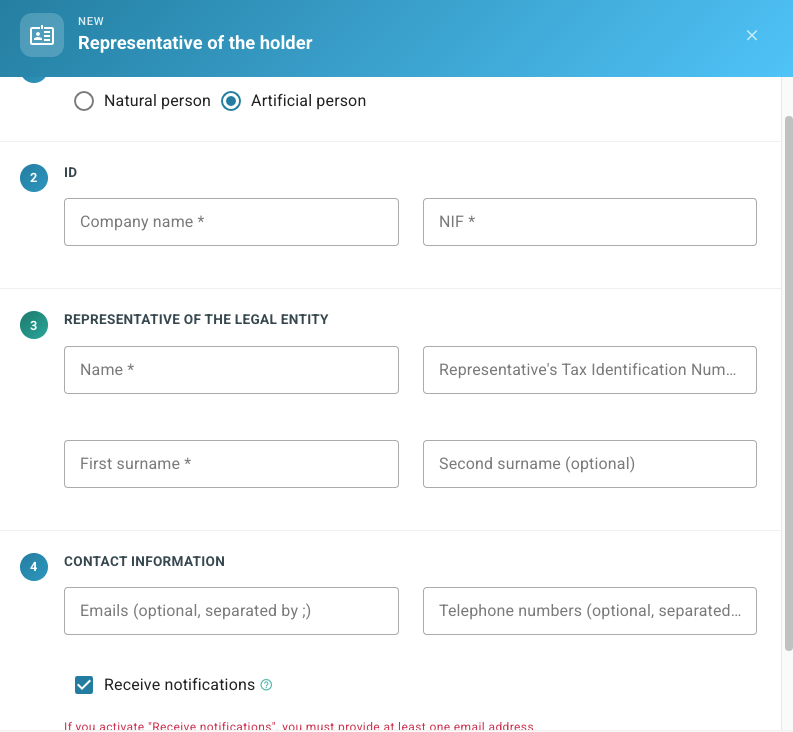
Option B: Legal Entity (Persona jurídica)
- A legal person is a corporation or association with legal personality; duly registered in the commercial registry.
- Company Name (Razón social) & Tax ID (NIF / EU VAT ID).
- Legal Representative Details: First Name, Tax ID (NIF del representante), First Surname, and optional Second Surname.
- Contact Information: Enter Email(s) and check Receive notifications (Recibir notificaciones).
- Authorization: Select Authorized and attach Letter of Authorization (“LoA”) from the Sender ID holder duly signed (the LoA must only be provided when the representative of the Sender ID holder is a third party, with whom the Sender ID holder signs an LoA authorizing them to do the registrations on their behalf (“authorized representative”). Such LoA does not need to be provided if the representative indicated here is the legal representative of the Sender ID holder).
- A legal person is a corporation or association with legal personality; duly registered in the commercial registry.
Step 5: Configure Alias & Legitimate Connection
Click + Add Alias (+ Añadir alias) to configure your Sender ID:
- Sender / Alias: Enter the exact Sender ID name you wish to register.
- Message Type (Tipo de mensaje): Select SMS/MMS.
- Activation Date (Fecha de activación): Set as the current date or intended launch date
- End Date (Fecha fin): Optional; leave blank for ongoing use.
- Legitimate Linkage (Vinculación legítima): Select the option matching your legal right to the requested.
-
Sender ID:
- Trademark registered with OEPM or EUIPO.
- Trade name registered with OEPM.
- Corporate name legally recognized in the Commercial Registry.
- Internet domain registered with Red.es or ICANNNames registered in other national or international public registries.
- Legitimate and habitual use of aliases in the course of professional activity (if the above do not apply).
- Specify Legitimate Connection (Especificar cuál es): Enter registration numbers (e.g., trademark/domain registration number) or provide an explanation if using legitimate/habitual use.
Step 6: Select Telecommunications Supplier (Proveedores)
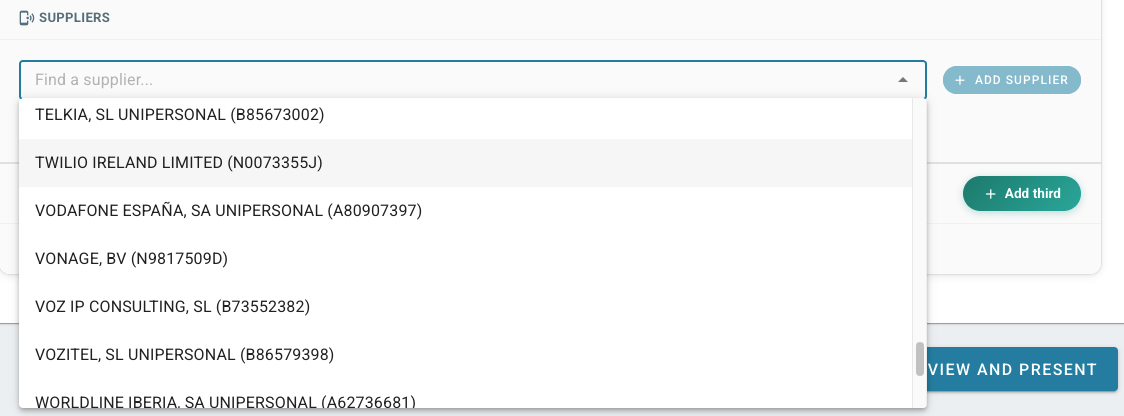
- In the Suppliers section, click Add Supplier (Añadir proveedor).
- Search and select TWILIO IRELAND LIMITED from the dropdown menu.
Step 7: Add Third Parties (Terceros) — If Applicable
Complete this step only if a third-party agency, integrator, or technology platform (other than the brand owner and selected supplier) manages the Sender ID on your behalf.
- Click + Add Third Party (+ Añadir tercero).
- Select Natural Person (Persona física) or Legal Entity (Persona jurídica) and fill in the requested identity and contact details.
Step 8: Review and Submit Application
Carefully review all populated fields.
- Click Review and Submit (Revisar y presentar) to submit the application to CNMC.
- (Optional: Click Guardar Borrador if you need to save a draft to finish later.)
Step 9: Download & Retain Confirmation Document
Once submitted, download and save the official confirmation document (Justificante). Keep this document for your internal records as proof of your registration submission. The document generated indicates that the type of application (Tipo de solicitud) is a Sender ID registration (Inscripcion de Alias).
- The designated legal representative of the Sender ID holder will receive an email from the CNMC informing them that they have an electronic notification on the Alias Registry portal.
- The designated legal representative must log into the portal within 10 working days of receipt of the electronic notification in order to authorize the application, which will then generate a second confirmation document (justificante) confirming the authorization.
- CNMC will review your application and send notifications regarding the approval status to the email provided.
Step 10: Return to the Twilio Console to register your Sender ID with Twilio
Log in to the Twilio Console and navigate to Numbers and Senders to create a new Spain Alphanumeric Sender ID registration. Complete the registration while also providing the proof of submission from the CNMC portal. If you need the alphanumeric sender ID in many accounts, you can also specify additional accounts to add to your registration.
Once your application is approved by Twilio and your registration on the CNMC is approved, you will have an Alphanumeric Sender ID provisioned to your account.